ReShade Setup Tool
The ReShade Setup Tool is the easiest way to uninstall ReShade. It removes ReShade's files for you and leaves the rest of your game untouched. This guide walks you through the process.
Selecting Your Game
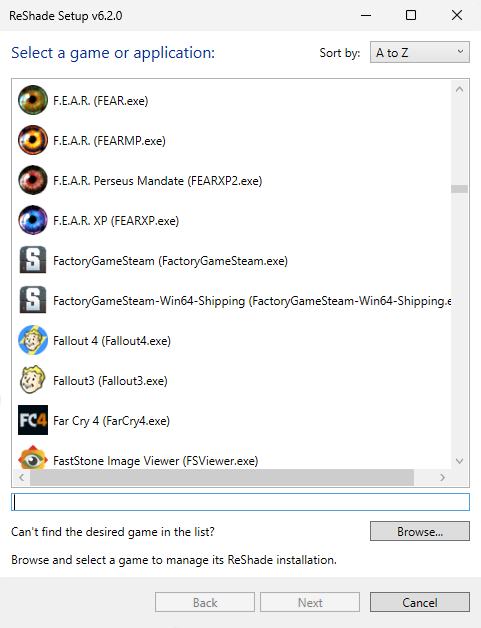
When you open the ReShade Setup Tool, choose the game or application that ReShade is currently installed in.
If your game isn't listed, click Browse... at the bottom-right corner of the setup tool. This opens a File Explorer window where you can manually find your game or application's executable.
Executable files usually have the .exe extension and are often located in the main folder of the game's installation directory.
If you're unsure where to find it, see our guide on finding your game's executable and directory for a step-by-step walkthrough.
Selecting the Rendering API
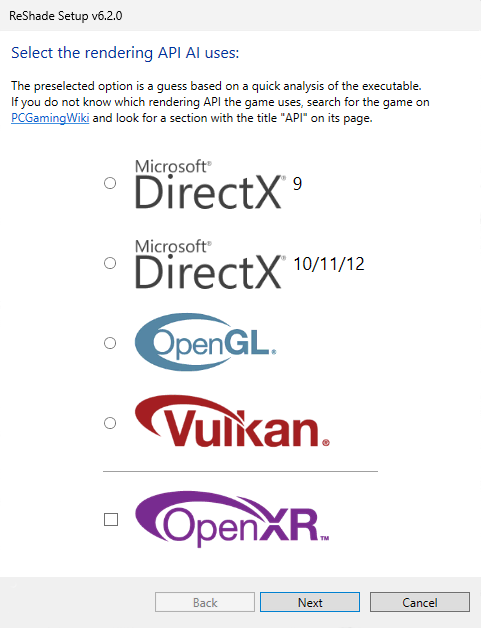
If ReShade is installed, the Rendering API that was previously selected will be ticked for you. If ReShade is not installed, or you've selected the wrong executable, this will be blank.
Uninstall ReShade and Effects
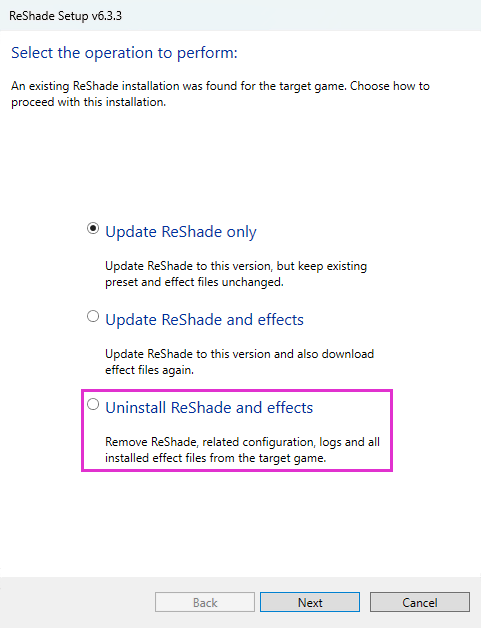
After you've selected the Rendering API, you'll be given three options. To remove ReShade and all of its installed files, select Uninstall ReShade and effects.
Finishing Up
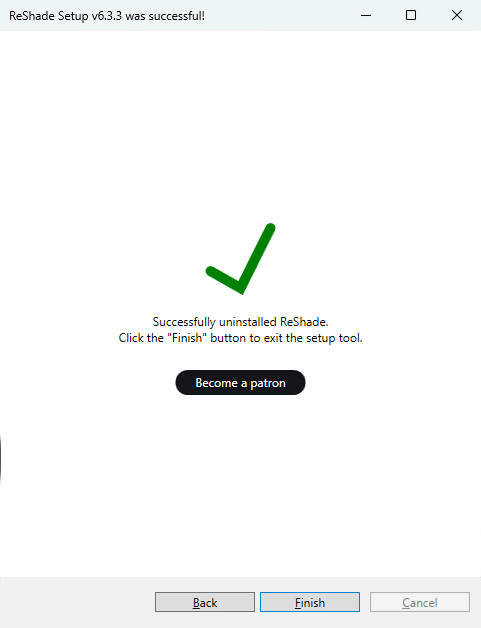
When the ReShade Setup Tool finishes, a confirmation screen appears. Click Finish at the bottom-right, then start your game to confirm ReShade is properly uninstalled.