dgVoodoo2
dgVoodoo2 is a rendering API wrapper that translates older DirectX rendering APIs to newer DirectX versions. This is useful for adapting DirectX 6/7/8/9 titles so that they can benefit from ReShade's features, including compute-based effects.
Download dgVoodoo2
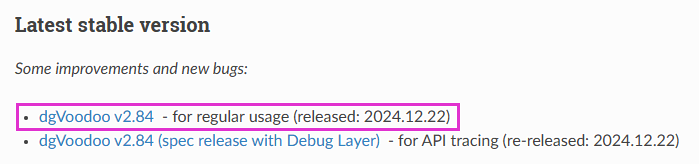
Download the latest version of dgVoodoo2 from the developer's website by selecting the Latest stable version.
Determine the Game's DirectX Version and Architecture
Go to PCGamingWiki and search for the game. Record the following information:
- The DirectX version the game uses (for example, DirectX 9 or DirectX 10).
- Whether the game executable is 32‑bit or 64‑bit.
Install dgVoodoo2
After determining the game's architecture and DirectX version, open the dgVoodoo2 ZIP file using an archive manager such as 7-Zip or WinRAR. Inside the archive, several files and folders are present. Note the dgVoodooCpl.exe and dgVoodoo.conf files in the root of the archive; these will be copied to the game directory later.
Then navigate into the MS folder.
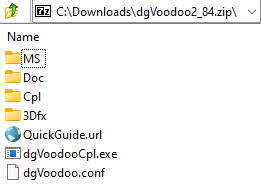
Within MS, several subfolders are available. For this workflow, only x64 (64‑bit) and x86 (32‑bit) are relevant. Open the folder that matches the game's architecture.

Inside the selected architecture folder, locate the DLL that matches the game's DirectX version:
| DLL Name | DirectX Version |
|---|---|
d3dim.dll | DirectX 6 |
ddraw.dll | DirectX 7 |
d3dim700.dll | DirectX 7 |
d3d8.dll | DirectX 8 |
d3d9.dll | DirectX 9 |
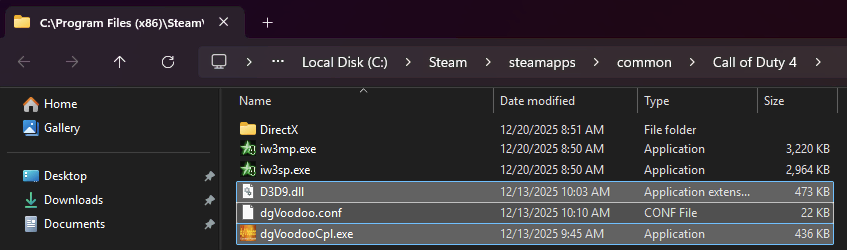
Copy the appropriate DLL, together with the dgVoodooCpl.exe and dgVoodoo.conf files, into the same directory as the game's main executable. If the game installation directory is unknown, refer to the guide on finding a game's executable for details.
Configure dgVoodoo2
In the game directory, double-click dgVoodooCpl.exe. This control panel application is used to configure dgVoodoo2 settings and exposes several configuration tabs.

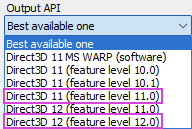
Click the General tab at the top of the window. The Output API dropdown menu determines which DirectX version dgVoodoo2 uses as the translation target for the game's rendering.
For ReShade compatibility, select one of the following options:
- Direct3D 11 (feature level 11.0) - Recommended for most systems
- Direct3D 12 (feature level 12.0) - May offer better performance on newer systems
After selecting the desired Output API, click Apply at the bottom of the window to save the configuration.
Install ReShade
After dgVoodoo2 is installed and configured to translate the game's DirectX calls to DirectX 11 or 12, ReShade can be installed. Because dgVoodoo2 presents the game as a newer DirectX version, ReShade must be installed for DirectX 10/11/12, not for the game's original DirectX version.
Download and run the latest ReShade installer from ReShade.me. When prompted to select the game's rendering API, choose DirectX 10/11/12. dgVoodoo2 presents the game as a DirectX 11 or 12 application to ReShade even if the original game uses an older DirectX version.
For detailed, step-by-step instructions on installing ReShade, refer to the ReShade installation guide.
After installation is complete, launch your game to verify that both dgVoodoo2 and ReShade are working correctly. You should see the ReShade overlay appear when you press the default key (usually the Home key), confirming that everything has been set up successfully.