Enabling Windows File Extensions
By default, Windows hides file name extensions for known file types. This means that common file types such as .txt, .ini, or .exe do not display their extensions in the file name column. While this behavior can simplify the appearance of folders, it can make it more difficult to identify specific files or change file types. This guide shows you how to configure Windows to display file name extensions for all known file types.
Open File Explorer Options
Open File Explorer Options using the Windows search function:
-
Open the Start Menu by clicking on the Windows icon in the bottom-left corner of your screen or by pressing the Windows key on your keyboard.
-
In the search bar, type "File Explorer Options" and wait for it to appear in the search results.
-
Once it appears in the search results, click File Explorer Options to open the settings dialog.

Make File Name Extensions Visible
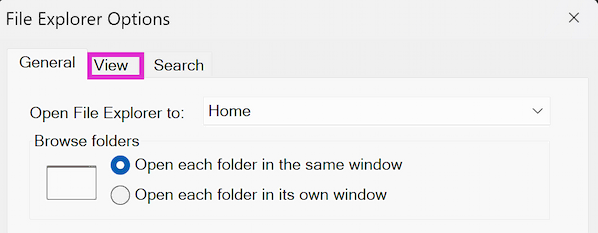
In the File Explorer Options window, three tabs are available at the top: General, View, and Search.
-
Click on the View tab. This is where you can control how files and folders are displayed.
-
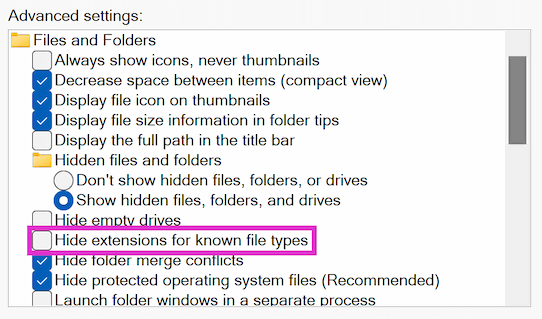
Under the Advanced settings section, scroll through the list until you find an option labeled "Hide extensions for known file types". By default, this box is checked, which means file extensions are hidden.
-
To show file name extensions, clear the Hide extensions for known file types check box.
Save the Configuration
Click OK in the lower-right corner of the window to apply the setting and close the dialog. File name extensions for all known file types are now visible in File Explorer, which simplifies distinguishing file types and managing files during troubleshooting or configuration tasks.