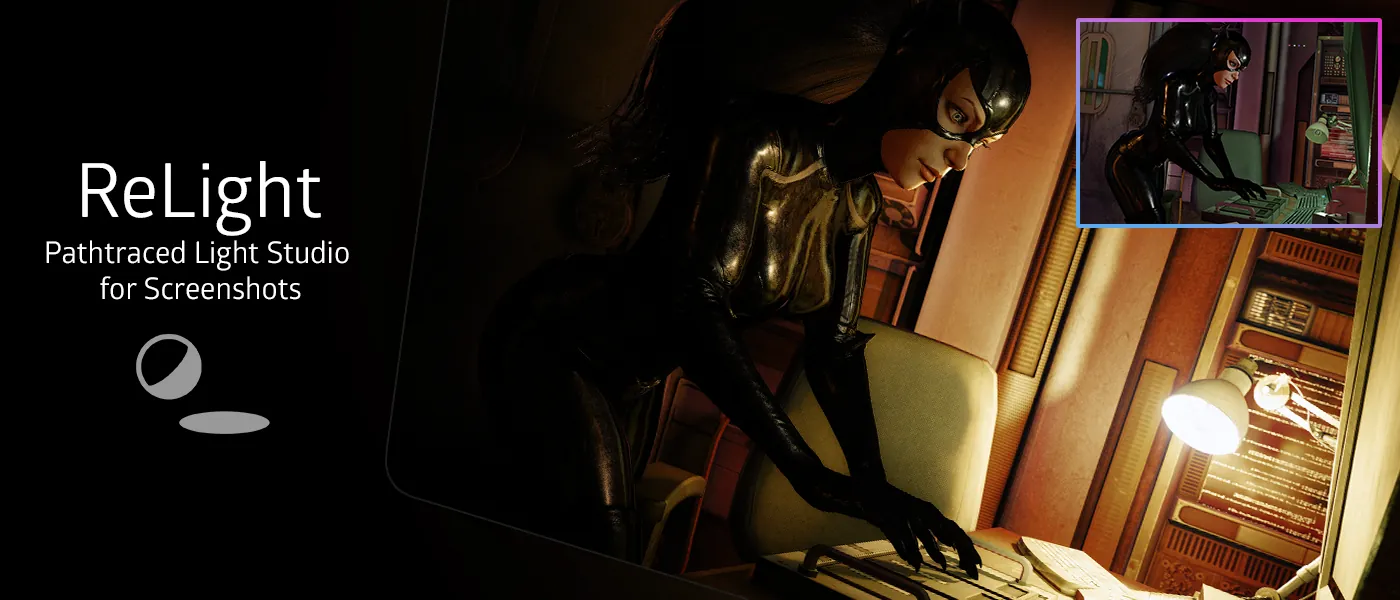
iMMERSE Ultimate: ReLight is a point-lighting solution for ReShade. Similar to studio lights in photography, ReLight allows you to change the lighting and adjust for more granular changes in the mood and details of the scenes. While you can use ReLight for any sort of scene, use-cases prove that close-ups or photos of humanoid models are the best cases for using ReLight. However, you're free to use it as you see fit.
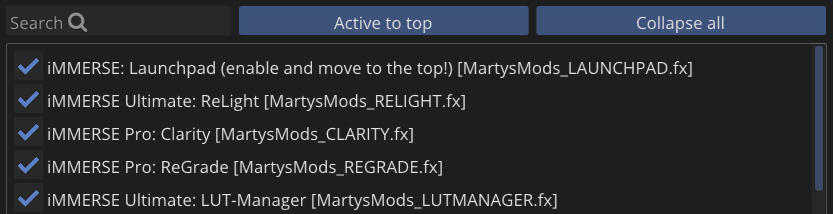
Launchpad is REQUIRED to be at the top of the shader load order in order for ReLight to function properly.
Preprocessor Definitions
AMOUNT_OF_LIGHTS
Controls the total number of light sources available in the shader. Accepts values between 2 and 4. Default is 2. Increasing this allows more simultaneous lights but comes with a proportional performance cost, as each additional light runs its own shadow tracing and shading calculations.
Global
Ambient Intensity
Range: 0.0 to 1.0. Default: 1.0.
Controls how much of the scene's original ambient lighting is preserved when ReLight is active. At 1.0, the scene looks exactly as it does without ReLight in terms of ambient contribution, and the ReLight sources are added on top. Reducing this value dims the ambient light of the scene, which can help ReLight sources stand out more clearly and gives you tighter control over where light appears to come from. At 0.0, all ambient light is removed entirely and only the configured ReLight sources illuminate the scene.
Shadow Tracing
Controls whether and how ReLight casts shadows from its light sources.
- Off: No shadows are cast. Light passes through all geometry regardless of obstruction. Fastest performance, but lights will bleed through walls and surfaces.
- Visibility Test: Traces a single ray from the surface toward the light source to determine whether it is occluded. Produces clean hard shadows with good performance. Suitable for most use cases.
- Recursive Path Tracing: Traces multiple rays with recursive bouncing to simulate realistic indirect shadowing and subtle light transport between surfaces. Produces the most physically accurate result but carries the highest performance cost.
Shadow Trace Quality
Only relevant when Shadow Tracing is set to Visibility Test or Recursive Path Tracing. Controls the number of samples used during shadow ray marching, directly affecting shadow accuracy and sharpness at the cost of performance.
- Low: Fewest samples. Fastest but may show noise or inaccurate shadow edges.
- Medium: Balanced quality and performance. Good starting point for most systems.
- High: Noticeably sharper shadows with moderate performance impact.
- Ultra: High sample count for clean, well-defined shadow edges.
- Maximum: Highest possible quality. Best reserved for screenshots rather than real-time use.
Object Thickness
Range: 0.0 to 10.0. Default: 4.0.
Defines how thick surfaces are assumed to be when ReLight traces shadow rays through geometry. Since ReShade can only observe surfaces facing the camera, it must estimate how far objects extend on their occluded sides. Too low a value allows light to leak through surfaces because geometry is assumed to be too thin to block the ray. Too high a value causes excessive darkening near surfaces as more geometry is treated as solid. The correct value varies between games depending on world scale and object sizes.
Light Sources
Each light source shares the same set of parameters. The number of available lights is controlled by the AMOUNT_OF_LIGHTS preprocessor definition.
Active
Enables or disables the light source. Disabled lights contribute nothing to the scene and have no performance cost.
Type
Selects the behavior model for the light source.
- Sphere: A point light placed at a specific position in screen space. Light radiates outward from that position in all directions, falling off with distance. Best suited for mimicking lamps, fill lights, or any localized light source.
- Infinite: A directional light with no defined position, similar to sunlight. Light travels in a single direction across the entire scene with no distance falloff. Controlled by azimuth and elevation angles rather than a position.
Temp / Tint
Range: -1.0 to 1.0 for each component.
A two-value control that adjusts the color of the emitted light. The first value controls temperature: negative values shift the light toward cool blue tones, positive values shift toward warm orange tones, matching the behavior of real-world color temperature. The second value controls tint: negative values add a green cast, positive values add a magenta cast. Both are commonly used together to match a light source to the existing lighting of a scene.
Intensity
Range: 0.0 to 1.0. Default: 1.0.
Controls the brightness of the light source. Higher values produce a brighter, more prominent contribution to the scene. As with any lighting tool, avoid setting this so high that illuminated surfaces exceed the brightness of the scene's existing light sources, as this will produce an unnatural result.
Penumbra
Range: 0.0 to 10.0. Default: 0.5.
Controls the softness of shadow edges cast by this light source. Lower values produce hard, sharply defined shadow edges. Higher values spread the shadow edge over a wider area, simulating a larger or more diffuse light source. Only has a visible effect when Shadow Tracing is enabled.
Sphere: Position X Y Z
Range: 0.0 to 1.0 per axis. Only active when Type is set to Sphere.
Places the light source in screen space. X controls the horizontal position from left (0.0) to right (1.0). Y controls the vertical position from top (0.0) to bottom (1.0). Z controls depth, placing the light closer to (0.0) or further into (1.0) the scene. Positioning in screen space means the light does not move with the game camera and must be manually adjusted when the scene changes.
Infinite: Azimuth / Elevation
Range: 0.0 to 1.0 per axis. Only active when Type is set to Infinite.
A two-value control that sets the direction of the directional light. Azimuth controls the horizontal angle of the light direction, rotating it around the scene from 0.0 to 1.0 representing a full 360 degrees. Elevation controls the vertical angle, with lower values placing the light near the horizon and higher values moving it overhead. Use these together to match a directional light to the sun position or any other environmental light source already present in the scene.
Sub-Surface Scattering
Sub-Surface Scattering (SSS) simulates the way light penetrates slightly into translucent surfaces such as skin, wax, or thin fabric, rather than reflecting purely off the surface. When a ReLight source illuminates a surface with SSS enabled and detected, light appears to glow softly from within the surface rather than sitting hard on top of it.
Enable Sub-Surface Scattering
Toggles the SSS effect on or off globally. Disabled by default. Enabling it adds a soft transmitted light component to surfaces that match the configured skin hue, most visibly on character faces and hands under close ReLight sources.
Quality
Controls the sample count used for SSS calculations, trading visual quality for performance.
- Very Low: Fastest. Noticeable noise or banding may appear in the scattering.
- Low: Slightly improved stability with minimal additional cost.
- Medium: Balanced quality and performance. Recommended for real-time use.
- High: Cleanest result, best suited for screenshots.
Saturation
Range: 0.0 to 1.0. Default: 0.7.
Controls how colorful the subsurface scattering response is. At higher values, the scattered light picks up more of the surface's underlying color, producing a warm, flesh-toned glow typical of skin under backlighting. At lower values, the scattering is more neutral and desaturated. Setting this too high can make surfaces look unnaturally vibrant.
Scattering Radius
Range: 0.0 to 1.0. Default: 0.5.
Controls how far light spreads beneath the surface before re-emerging. Higher values produce a wider, softer glow that bleeds further from the illuminated area. Lower values keep the scattering tight and localized to the point of light contact. The appropriate value depends on the material being simulated: skin typically benefits from a moderate radius, while thicker or less translucent materials should use lower values.
Skin Hue
Range: 0.0 to 360.0. Default: 18.0.
Sets the target hue in degrees that the SSS system uses to identify skin-like surfaces in the image. The default value of 18.0 corresponds to a warm orange-red typical of human skin tones. If SSS is not appearing on surfaces it should, or is appearing on surfaces it should not, adjusting this value to better match the dominant hue of the target material can improve detection accuracy.
SSS Skin Hue Tolerance
Range: 0.0 to 1.0. Default: 0.1.
Controls how strictly the SSS system matches against the configured Skin Hue. Lower values require surfaces to closely match the target hue before SSS is applied, producing more precise but potentially patchy detection. Higher values accept a broader range of hues, which can improve coverage on varied skin tones but may cause SSS to bleed onto nearby surfaces that share a similar color.
Experimental
Use Albedo Estimation
Disabled by default.
Attempts to estimate the underlying surface albedo (base color) from the current image in order to make light blending more physically accurate. When enabled, ReLight tries to separate the lighting from the color information in the scene and uses the estimated base color to determine how surfaces should respond to the configured light sources. This can produce more convincing results on surfaces with strong existing lighting or color. Because the estimation is derived from a post-processed image rather than raw scene data, it is imperfect and can produce unexpected or incorrect colors in some situations, particularly on surfaces with complex existing lighting or very saturated colors.
Debug

Debug Outputs
Visualization modes for inspecting ReLight's internal calculations.
- None: Standard output with all effects composited normally.
- Validation Layer (all): Overlays all available debug information simultaneously, useful for a broad overview of what ReLight is computing.
- Lighting: Isolates only the lighting contribution from ReLight sources, showing how light is distributed across the scene without the base image underneath.
- SSS Skin Mask: Displays which areas of the image are being detected as skin based on the configured Skin Hue and SSS Skin Hue Tolerance values. White areas will receive SSS; black areas will not. Useful for diagnosing incorrect SSS coverage.
Light Overlay
Controls when the light source position indicators are visible on screen. These indicators show the placement of each active Sphere light in screen space and are useful when positioning lights precisely.
- Disabled: No indicators shown at any time.
- Show while GUI is open: Indicators only appear while the ReShade overlay is open.
- Show while GUI is open and on screenshots: Indicators appear while the overlay is open and are included in screenshots taken through ReShade.
- Show always: Indicators are always visible, including during normal gameplay.
Light Overlay Opacity
Range: 0.1 to 1.0. Default: 1.0.
Controls the transparency of the light source position indicators. Lower values make the indicators more subtle so they interfere less with the scene while positioning lights.
Troubleshooting
Blocky or Faceted Lighting
If ReLight's lighting appears blocky or faceted, with hard, polygonal edges visible across surfaces, the cause is that ReLight is working from ReShade's generic normals, which are derived directly from the raw depth buffer. Since depth buffers only capture surface distance and not true geometric detail, the normals calculated from them reflect the low-polygon structure of the underlying geometry rather than the smooth surface the game's own renderer would produce.
The fix is to enable Smoothed Normals in iMMERSE Launchpad. Smoothed Normals average surface normals across adjacent geometry, softening the hard edges and producing a much more natural response to lighting across curved or organic surfaces such as character models and terrain.