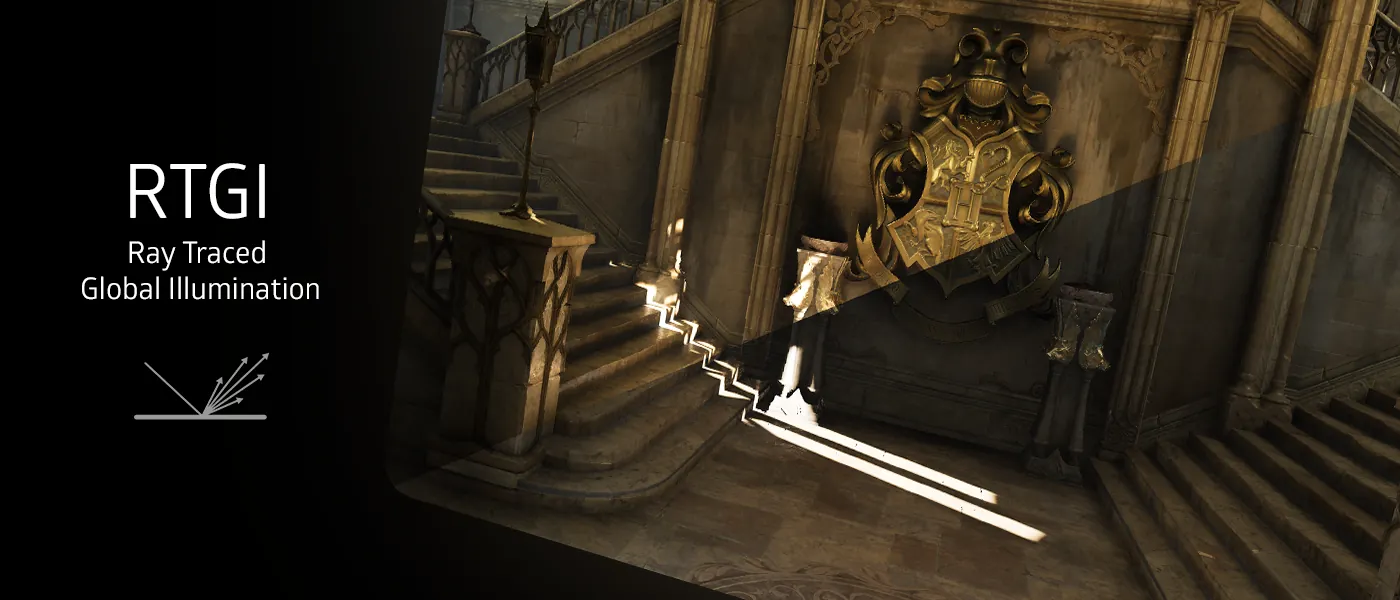
iMMERSE Pro: RTGI Specular is the specular companion to RTGI Diffuse. While RTGI Diffuse handles indirect lighting and ambient occlusion, RTGI Specular adds glossy reflections to surfaces based on their roughness. The two shaders are designed to be used together for a complete indirect lighting solution.
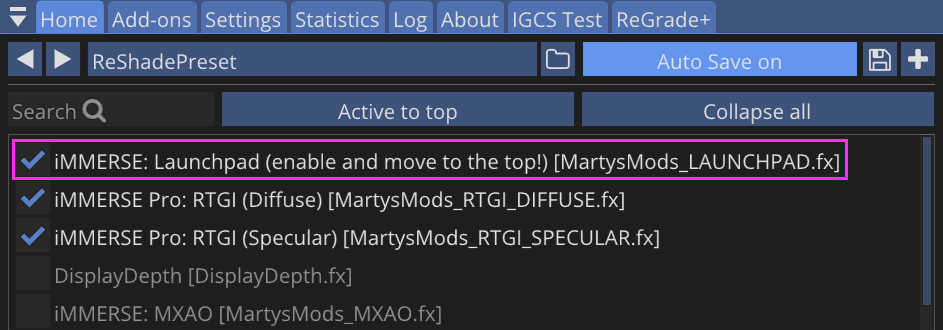
Launchpad is REQUIRED to be at the top of the shader load order for RTGI Specular to function properly.
Ray Tracing
Quality
Default: Medium.
Controls the number of rays cast per pixel. Higher quality produces cleaner, more stable reflections with less noise. Lower quality is faster but may show flickering or rough edges on glossy surfaces.
- Low: Fastest. May show visible noise, especially on smooth surfaces.
- Medium: Good balance of quality and performance for most setups.
- High: Cleaner reflections with a moderate performance cost.
- Ultra: Best quality. Best suited for screenshots.
Object Thickness
Range: 0.0 to 1.0. Default: 0.25.
Since the depth buffer only captures surfaces facing the camera, the shader has to estimate how far objects extend behind their visible face. Set this as low as possible without the specular GI becoming too weak or disappearing. Only raise it if light visibly leaks through surfaces it should not pass through.
Surface Roughness
Range: 0.0 to 0.5. Default: 0.2.
Controls how glossy or matte the specular reflections appear. Lower values produce sharper, more mirror-like reflections. Higher values spread the reflections broadly, producing a soft sheen rather than a clear gloss. For most scenes, values between 0.15 and 0.35 are a good range.
Fresnel F0
Range: 0.04 to 0.5. Default: 0.04.
Controls how strongly surfaces reflect light when viewed head-on. The default of 0.04 is physically correct for most everyday surfaces like wood, concrete, and plastic. If the specular contribution feels too subtle, raising this slightly toward 0.1 will make reflections more prominent across the scene.
Blending
Fade-Out Range
Range: 0.001 to 1.0. Default: 0.3.
Sets how far into the scene specular GI is applied. Lower values keep the effect close to the camera. Higher values extend it further into the scene but may reveal screen-space limitations where reflections cut off at the edges of visible geometry.
Debug
Debug View
Default: Disabled.
- Disabled: Normal output.
- Specular RTGI: Shows only the raw specular GI layer. Useful when tuning roughness and F0 to see exactly what the shader is contributing.
- Validation Layer: Shows internal data inputs including Depth, Lighting, Normal Vectors, and Optical Flow. Useful for diagnosing issues with the depth buffer or Launchpad inputs.
Troubleshooting
Black Screen When Enabling RTGI Specular
A black screen when enabling RTGI Specular has two common causes:
- Missing Launchpad: iMMERSE Launchpad is not loaded or is not at the top of the shader load order.
- Missing texture files: One or more required iMMERSE texture files are missing or not in the correct location. Ensure all iMMERSE texture files are present and up to date in your textures folder.
RTGI Specular Not Making Any Visible Changes on Screen
If RTGI Specular appears to have no effect, there are two likely causes:
- Missing Launchpad: iMMERSE Launchpad is not loaded or is not at the top of the shader load order.
- No depth buffer: RTGI Specular requires a working depth buffer. See the Depth Buffer guide for help configuring depth using the
DisplayDepthshader.
Weird Squares on the Screen
Visible square artifacts on screen are caused by outdated iMMERSE headers or missing/outdated texture files.
- Outdated headers: Update your iMMERSE headers to the latest version.
- Missing or outdated textures: Ensure all iMMERSE texture files are present and up to date in your textures folder.